Samsung TV is offline in the SmartThings app
Important Note: The information on this page is for Hong Kong products only. Models, sequences or settings will vary depending on location and/or where the product had been purchased. To be redirected to your local support page please click here.
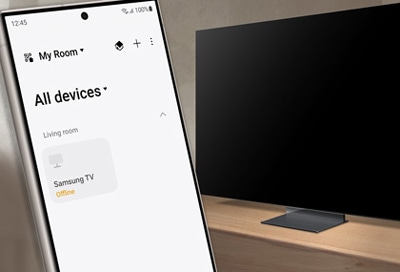
There are a couple of solutions you can try if your Samsung TV appears as offline in the SmartThings app after it has been added to the app. For example, you can check the power cord connection and network connection, and then perform a diagnostic test using SmartThings.
Note: TVs older than 2019 may be displayed as offline when turned off, depending on the network connection method, and cannot be turned on with the SmartThings app. In this case, please turn on the TV with the remote control.
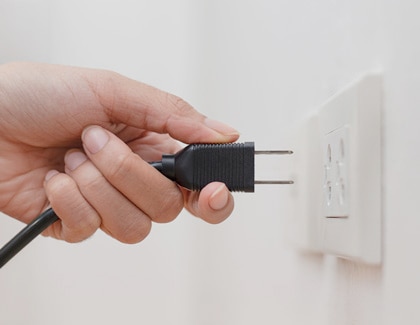
If the TV is not connected to a power outlet, it may appear as offline in the SmartThings app. Additionally, if a TV registered in the SmartThings app is not used for more than one month, it may also appear as offline in the SmartThings app.
You can check the network connection using the TV’s Settings menu. If your TV is not connected to a network, it may appear as offline in the SmartThings app.
Step 1.
Go to Settings > All Settings.


Step 2.
Select Connections.


Step 3.
Select Network.


Step 4.
Select Network Status.


Step 5.
You'll see the current network connection status of your TV.


Note: Depending on your TV model, you may need to navigate to Settings, then select General, and then select Network.
Step 6.
If your TV is not connected to a network, please reset your network settings. To do so, navigate back to the Network settings menu, then select Reset Network, and then select Reset.


Note: If there is no Network Reset menu, please reset your network settings.
Step 7.
Navigate back to the Network settings menu and select Network Settings.


Step 8.
Select Wireless, then elect your Wi-Fi network and enter the password when prompted.
If the issue persists after resetting the network, please turn your Wi-Fi router off and then turn it on again.


Note: Ensure your TV and phone are connected to the same network.
You can also check if the “Power On with Mobile” setting has been enabled on your TV. If this setting is disabled, you will not be able to turn on your TV using the SmartThings app.
Step 1.
Go to Settings > All Settings.
Step 2.
Select Connections.
Step 3.
Select Network.
Step 4.
Select Expert Settings.


Note: Depending on your TV model, this feature may not be supported, and you may need to navigate to Settings, then select General, and then select Network.
Step 5.
Select Power On with Mobile to enable it.


Using the SmartThings app, you can perform an offline diagnostic test for your TV. Make sure your phone and TV are connected to the same Wi-Fi network.


Step 1. Tap Menu at the bottom of the SmartThings screen.


Step 2. Tap Offline diagnostics.


Step 3. Tap Run next to your TV’s name.


Step 4. Tap Start and follow the on-screen instructions to finish the test. Review the results of the test and perform the necessary steps.
Note: You may need to enter a PIN on your phone or perform other actions.
If the issue was not resolved during the diagnostic test, you can try removing the TV from SmartThings and then registering it again.


Step 1. Tap Device at the bottom of the SmartThings screen.


Step 2. Press and hold the TV card you want to remove, then tap Remove.


Step 3. Tap Remove to confirm.


Step 4 Tap Add (Plus icon) and perform the registration process again.
Finally, if the issue still isn’t resolved, you can send an error report.
Note: When sending an error report for TVs older than 2019, the TV device ID and model name must be entered manually. These details will not be automatically transmitted.
Step 1. Tap Menu at the bottom of the SmartThings screen.


Step 2. Tap Contact us.


Step 3. Select Send feedback.


Step 4. Tap the Send icon at the bottom right corner.


Step 5. Select Device went offline or any problems you are encountering.


Step 6. Tap Send without diagnostics.


Step 7. Select your TV, and then tap Continue.


Step 8. Complete the error report form. Select Send system log data, and then tap the Send icon at the top right corner to send the error report.
Note:
- You can also attach related screenshots or videos (Paperclip icon at top right corner) and enter your thoughts or concerns in the report.
- You can view the error report and check the responses in the feedback section afterwards
If the above information does not match what your product is showing, you may check the User Manual for your product. If you are unable to solve the problem, please contact us for further assistance.
Thank you for your feedback!
Please answer all questions.
RC01_Static Content : This text is only displayed on the editor page